

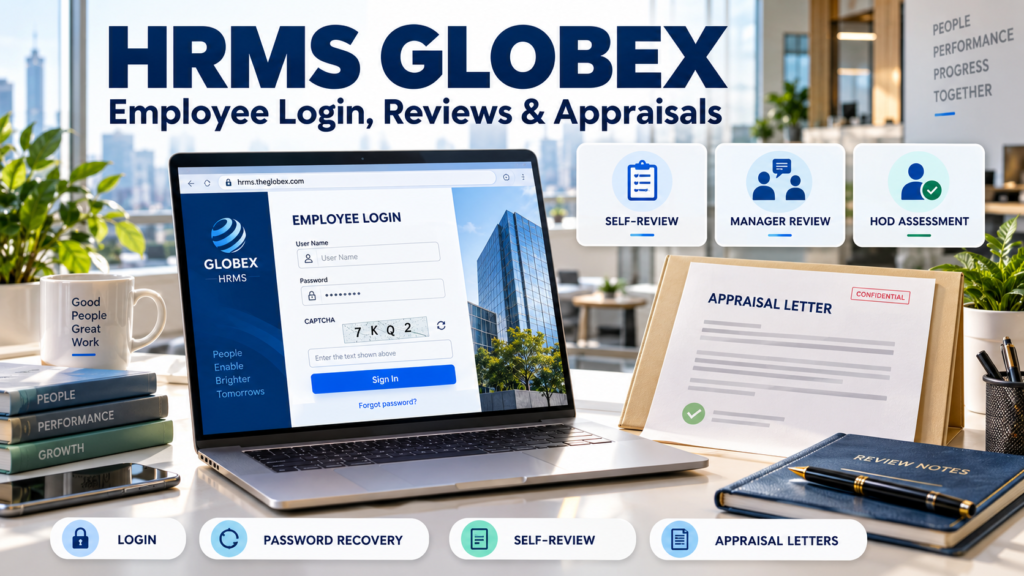
HRMS Globex is associated with the employee portal at hrms.theglobex.com, where users sign in with a username, password, and CAPTCHA. Published documents on the same domain describe performance self-reviews, manager assessments, and appraisal-letter acceptance, providing evidence of its workplace functions.
This guide covers account access, password recovery, and the review workflows explained in those manuals. It also examines mobile-access claims, common login questions, and the difference between the employee portal and similarly named websites. Employees can use this information alongside current instructions from their HR team or reporting manager.
Understanding HRMS Globex and Its Purpose
HRMS stands for Human Resource Management System. HRMS Globex is associated with the employee portal at hrms.theglobex.com, which provides account-based access to workplace services. The public page displays login fields and a password-recovery link.
Its documented purpose includes organizing performance assessments and appraisal communication. Published guides show employees submitting self-reviews, managers assessing their teams, and eligible staff viewing and accepting appraisal letters. These processes bring employee input and management responses into a shared workflow. Because the guides concern earlier review cycles, current deadlines, eligibility rules, and available services should be confirmed with HR.
Its Connection to Global Healthcare Billing Partners
A 2021 employee review guide hosted on hrms.theglobex.com carries the document title Global Healthcare Billing Partners Pvt Ltd. It explains how staff could view and accept appraisal letters for the July 2020 to June 2021 review period. This provides documentary evidence linking the portal to the company’s employee appraisal process.
The company’s own website describes medical coding, revenue-cycle management, and related healthcare support services. Its contact page lists a head office in Chennai, India. Together, these records support describing HRMS Globex as an employee resource associated with that healthcare-services business.
hrms.theglobex.com and HRMSGlobex.com: Understanding the Difference
hrms.theglobex.com opens an employee login page with username, password, and CAPTCHA fields. It also provides a password-recovery link and hosts published appraisal guides. These features identify the employee portal discussed in this article.
HRMSGlobex.com is a separate domain. Its homepage promotes an all-in-one HR platform and links to articles on several subjects. The reviewed pages do not clearly establish its relationship with the employee portal. Similar branding does not confirm shared ownership or that workplace accounts work on both sites. Employees should use the exact portal address confirmed by their HR team.
Who Can Access the Employee Portal?
The published PMS guide describes eligible employees, reporting leads, and department heads participating in performance reviews. Employees complete self-assessments, reporting leads assess their teams, and a department head provides the final review. Availability can depend on eligibility for the appraisal cycle.
The HRMS Globex login page requires an existing account and does not display public self-registration. New users should obtain access instructions from HR or an authorized administrator. If an expected review or appraisal letter is missing, the employee’s manager or HR team can help confirm eligibility and the next steps.
Logging In With a Username, Password, and CAPTCHA
Open hrms.theglobex.com using the address confirmed by your employer. Enter your assigned username and password in the corresponding fields, then type the CAPTCHA characters currently displayed on the page. Submit the completed form to request access to your account.
If the CAPTCHA is difficult to read, use the refresh control and enter the replacement challenge. Check for accidental spaces and incorrect password capitalization before trying again. The page also provides a Forgot password? link. Employees who have not received credentials should ask HR or their authorized administrator for access instructions.
Password Recovery Using an Employee Code
Choose Forgot password? on the HRMS Globex login page to open the recovery form. The public page asks for an Employee Code and a CAPTCHA. Enter the code assigned to you, type the characters currently displayed, and submit the completed form.
Continue with the instructions shown by the portal after submission. The public page does not document the later recovery steps, so a specific email or SMS reset process cannot be confirmed. If your employee code is unavailable or the request cannot proceed, ask HR or an authorized administrator to check your account details.
Employee Roles, Review Eligibility, and Dashboard Access
The published PMS guide links review availability to eligibility for a particular appraisal cycle. In its 2018 example, PMS was enabled for January-review participants, while other employees could receive a deferred-review message. Those historical rules should not be treated as current requirements.
The guide assigns different responsibilities to employees, reporting leads, and department heads. This helps explain why review tasks can vary between users. If you can sign in but cannot find an expected review or appraisal letter, ask HR or your manager to confirm your participation in the current cycle and the options available to you.
The Published PMS Guides and Their Review Workflows
Two guides hosted on hrms.theglobex.com document different parts of the Performance Management System, or PMS. The 2018 manual explains assessment stages, performance criteria, required comments, and review submission. It also describes automatically saving an interrupted assessment as a draft that can be resumed later.
The July 2021 manual focuses on viewing an appraisal letter and accepting the review. Its illustrated sequence includes password confirmation and an acknowledgement page. Together, these documents show how assessments and employee acceptance were handled within HRMS Globex. Current workflows and deadlines should follow instructions from the employer.
Completing an Employee Self-Review
In the 2018 PMS guide, employees open Performance Review from the dashboard, select their employee code, and choose Start Review. They then complete the assessment fields and add comments about their work. All required fields must be filled before submission, with detailed remarks explaining performance against individual criteria.
Check each entry carefully before selecting Complete Review. The documented process sends the completed self-review to the supervisor and does not allow further changes afterward. If the assessment is interrupted, the guide says HRMS automatically saves a draft that can be resumed after signing in again.
Performance Criteria, Monthly Data, and Review Comments
The 2018 PMS guide groups assessment criteria into production analysis and core values. Production measures include efficiency, quality, and attendance. Broader criteria cover ownership, communication, client satisfaction, domain and technical knowledge, meeting deadlines, handling pressure, and time management.
The guide says monthly efficiency, quality, and attendance figures update automatically, while employees can add comments. Use those comments to explain results, contributions, or difficulties with concrete examples from the review period. If a figure appears incorrect, ask your reporting lead to clarify it before completing the assessment.
Reporting Lead Reviews and Final HOD Assessments
After the employee’s self-review, the 2018 PMS workflow moves to the reporting lead’s Team’s Review. The guide places a one-to-one discussion before completion of that assessment. Employees can use the conversation to explain their comments, discuss results, and provide relevant examples of their work.
The final assessment is assigned to the Head of Department (HOD). This completes the sequence of self-review, appraiser review, and final reviewer comments described in the manual. If progress is unclear, ask your reporting lead which stage the assessment has reached and whether any further information is needed.
Viewing and Accepting an Appraisal Letter
The July 2021 guide shows employees opening their appraisal letter in HRMS Globex and selecting the option to accept the review. The next illustrated step asks for the HRMS password to confirm acceptance, followed by an acknowledgement page.
Read the letter carefully before confirming, and ask HR to explain any unfamiliar or unexpected detail. The guide directs employees who belong to the review cycle but cannot see a letter to contact their manager or HR. It also treats appraisal letters as confidential documents that should not be shared with unauthorized people.
Payroll, Attendance, and Leave: Features to Confirm
Payroll, attendance, and leave functions should be confirmed with HR before relying on a general feature list. The public HRMS Globex login page does not expose its employee modules. The 2018 PMS guide shows monthly attendance figures within performance reviews, but this does not establish a complete attendance-management or leave system.
Ask HR whether your account supports payslip downloads, leave requests, leave balances, or attendance corrections. Confirm where each service appears, which periods are available, and how to report a discrepancy. Follow your employer’s current instructions for payroll dates and leave rules.
Mobile Browser Access and Official App Claims
The publicly accessible HRMS Globex entry point is a browser login page. For use on a phone or tablet, open the employer-approved address and check whether the CAPTCHA, fields, and required screens display correctly. The public information reviewed does not establish compatibility with every mobile device or workflow.
The login page provides no Android or iOS app-store links, and a dedicated official app could not be verified. Obtain any employer-recommended download link directly from HR or IT. If mobile use is awkward, ask which browser or device your organization supports for completing reviews.
Login Errors, CAPTCHA Issues, and Missing Review Options
Start with the HRMS Globex login page and re-enter your assigned credentials. Check password capitalization and accidental spaces. If the CAPTCHA is unclear or rejected, refresh the challenge and enter the new characters. If you have forgotten your password, use the Forgot password? link.
A missing review option needs a different check. The 2018 PMS guide links participation to review eligibility, while the 2021 guide directs employees with missing appraisal letters to their manager or HR. When requesting help, specify whether the problem is failed sign-in, a CAPTCHA error, or a missing option after successful login.
Protecting Login Details and Confidential HR Records
Keep your HRMS Globex password private and use the portal address confirmed by your employer. Avoid saving credentials on shared computers, and sign out when you finish. Support requests should describe the problem without including your password or unnecessary personal details.
The 2021 appraisal guide explicitly states that review letters are confidential and should not be shared with unauthorized people. Store any downloaded HR records in an employer-approved location and share them only through authorized channels. Before using a personal device or cloud account to keep copies, check your employer’s rules for storing workplace documents.
When to Contact HR or Your Reporting Manager
Contact HR when access problems, an unknown employee code, or a missing appraisal letter prevent you from completing a task. Ask your reporting manager about review participation, assessment comments, or performance figures. The 2021 guide specifically directs employees with missing appraisal letters to their manager or HR.
When requesting help, state the review period, the affected screen, and whether you can sign in. Describe the missing option or quote the error message. If a submission deadline is approaching, ask what you should do while the issue is being resolved and who will provide the next update.
Practical Benefits and Limits of the Employee Portal
HRMS Globex can organize employee self-reviews, manager assessments, and appraisal communication within one workflow. The published PMS guide describes automatic draft saving when a review is interrupted, allowing it to resume after sign-in. The 2021 manual also documents viewing and accepting appraisal letters through the portal.
Public information has limits: the login page does not show the current dashboard, and the manuals cover earlier review cycles. They cannot confirm every feature available today. Employees should check current services, deadlines, and device requirements with their employer, particularly when third-party articles promise additional payroll, leave, or mobile-app functions.
Frequently Asked Questions
What is HRMS Globex used for?
It serves as an employee HR portal. Published manuals document performance self-reviews, reporting-lead assessments, final department-head reviews, and viewing and accepting appraisal letters through an employee account.
Which website should employees use to log in?
The publicly accessible login page is at hrms.theglobex.com. Employees should use the exact address confirmed by their employer, particularly because a separate domain also uses the HRMS Globex name.
How can I reset my HRMS Globex password?
Select Forgot password? on the login page. The recovery form asks for an Employee Code and CAPTCHA. Submit those details and follow the portal’s instructions, or contact HR if you cannot continue.
Does HRMS Globex support employee performance reviews?
Yes, published PMS guides document these functions. The 2018 manual outlines employee self-review, reporting-lead assessment, and final HOD review. Confirm the current review cycle and its requirements with your employer.
Can I check payslips, attendance, and leave through the portal?
These services are not all confirmed by the public portal. The 2018 guide shows attendance data in appraisals, while payslip downloads and leave functions should be checked with HR.
Does HRMS Globex have an official mobile app?
An official Android or iOS app could not be verified from the public information reviewed. The portal offers a web login. Obtain any employer-recommended app link directly from HR or IT.
Are HRMSGlobex.com and hrms.theglobex.com connected?
They are separate domains. HRMSGlobex.com promotes HR software and publishes articles, but the reviewed pages do not establish that it operates or shares ownership with the employee portal.
Why is my performance review or appraisal letter missing?
Review availability may depend on eligibility for the appraisal cycle. The 2021 guide instructs employees included in a review who cannot see their letter to contact their manager or HR.
Conclusion: Making the Most of Your HRMS Globex Access
Make the most of HRMS Globex by using your employer’s confirmed login address, understanding your review responsibilities, and checking entries before final submission. Published guides document self-assessments, manager reviews, and appraisal-letter acceptance within the portal.
Follow current HR instructions for eligibility, deadlines, and available services. The manuals describe earlier review cycles, so their details need to be read in that context. If access fails or an expected letter is missing, contact HR or your reporting manager with a clear description of the problem.
